What you’ll learn
This guide shows you how to limit how many units of a product a customer can order. By the end, you’ll have a working maximum quantity rule that blocks over-ordering at checkout.
- How to create a maximum quantity rule for specific products
- Setting the maximum number of units a customer can buy
- How checkout validation blocks orders that exceed your limit
- Customizing the error message customers see when they order too many
Step 1: Install Nex MOQ
- 1
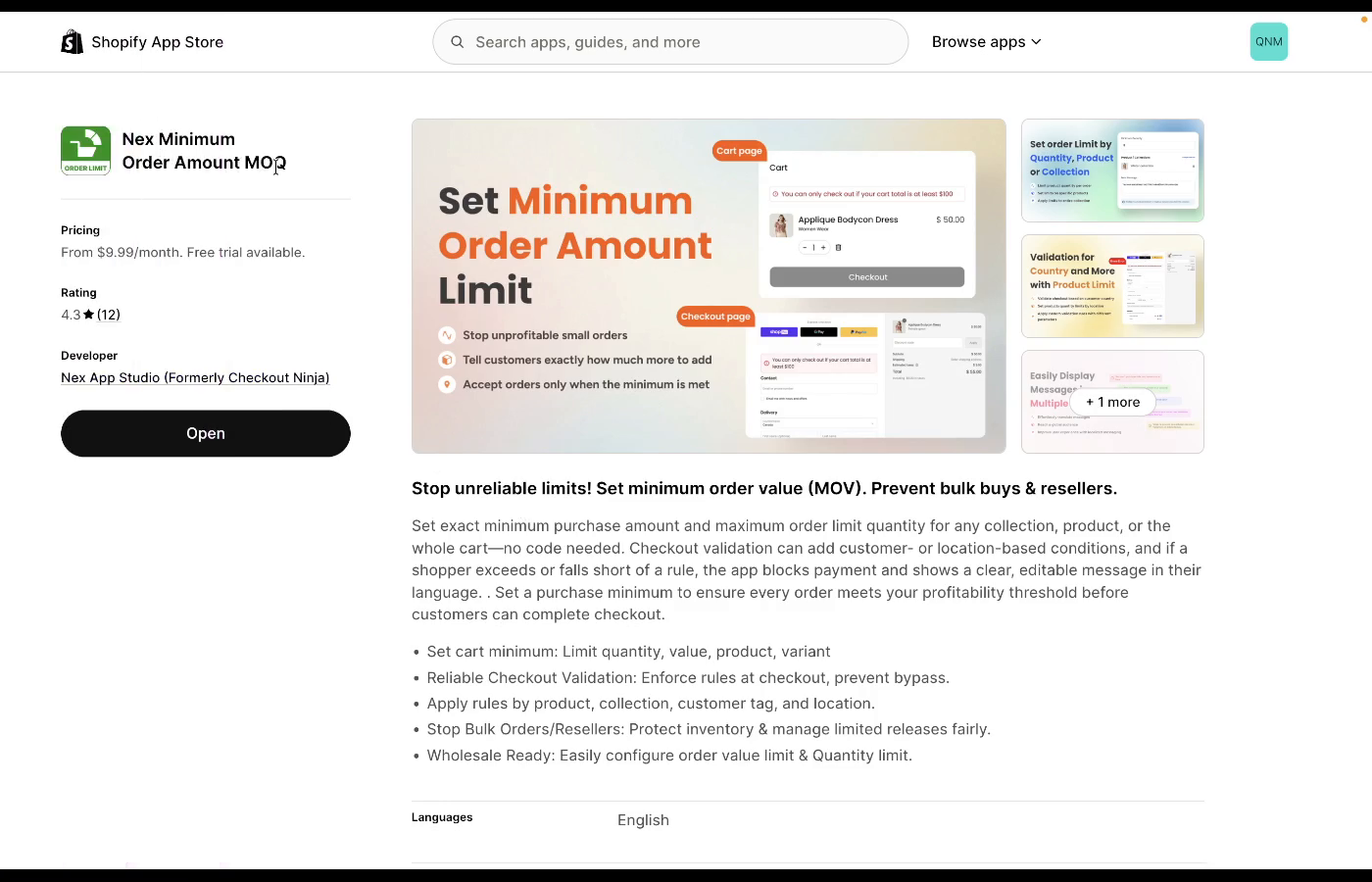
Find the app — search “Nex MOQ” in the Shopify App Store, or go directly to the app listing.
- 2
Click “Add app” and approve the permissions. The app needs access to your products and checkout to enforce rules.
- 3
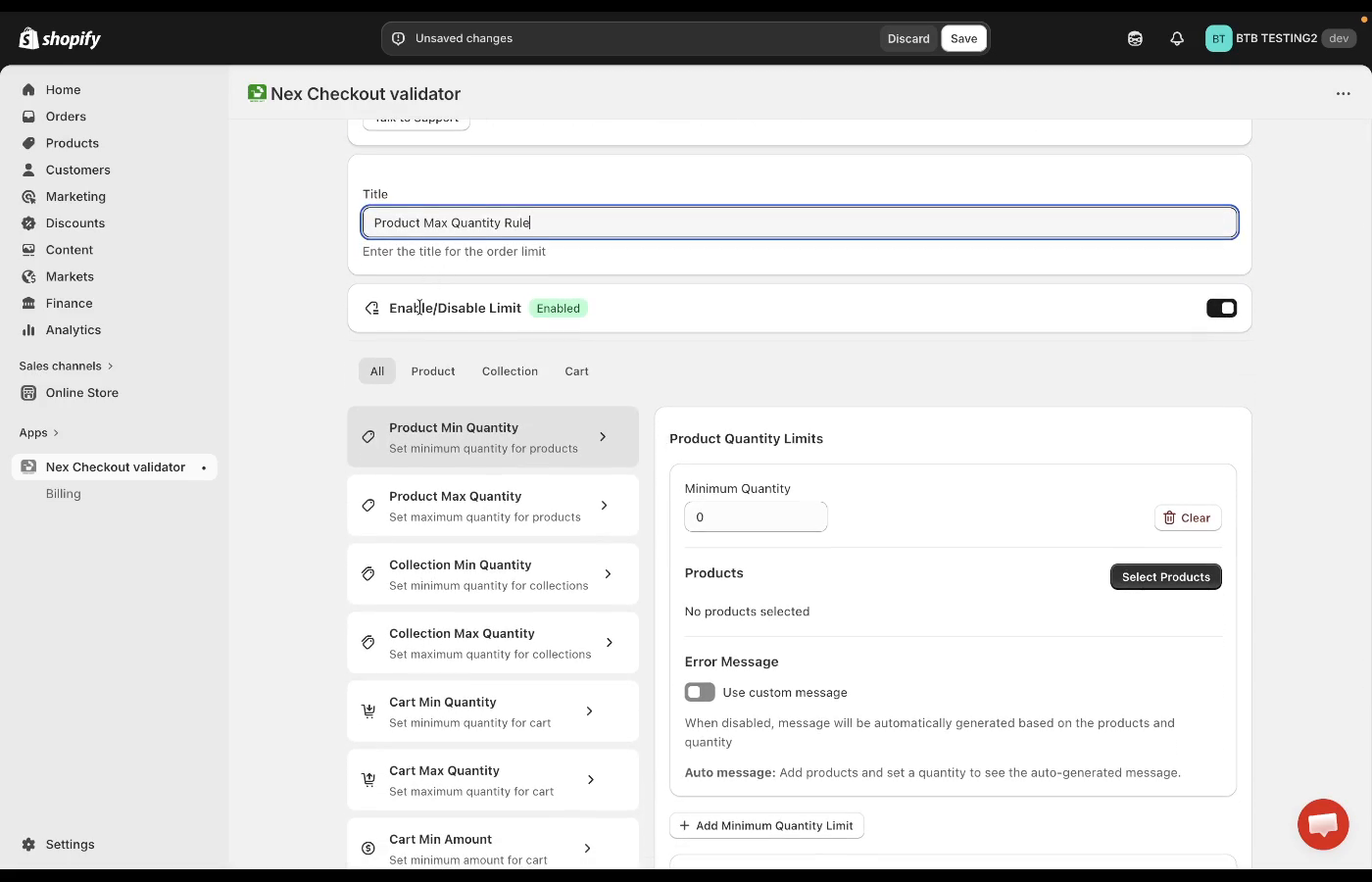
Open the app from your Shopify admin sidebar. You’ll see the main dashboard with all available rule types.
Step 2: Create a maximum quantity rule
- 1
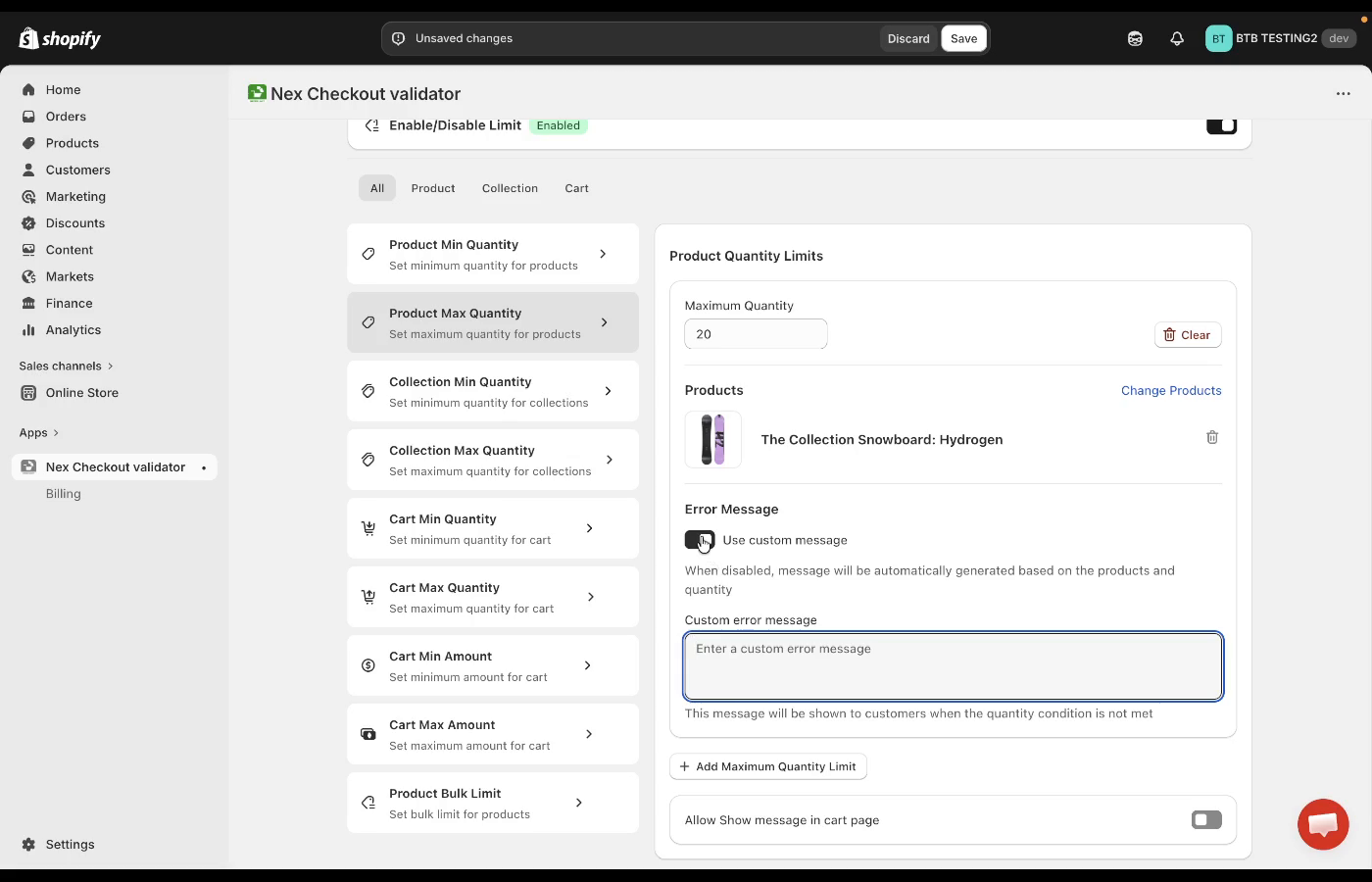
Click “Product Max Quantity” from the rule type list on the left.
- 2
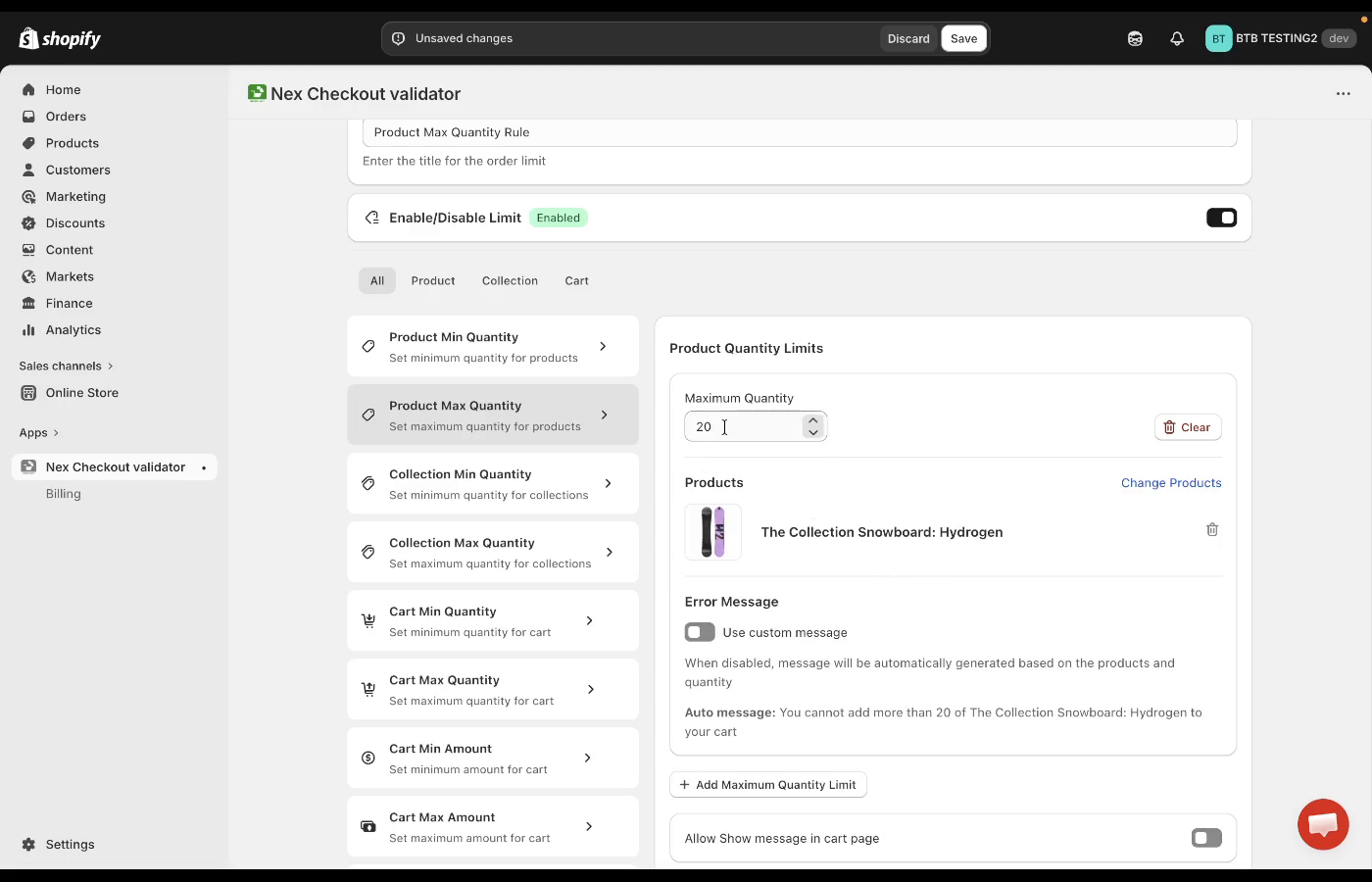
Set the maximum value — enter the maximum number of units a customer can order. For example, enter “20” to cap orders at 20 units per product.
- 3
Select your products — click “Select Products” to choose which products this limit applies to.
- 4
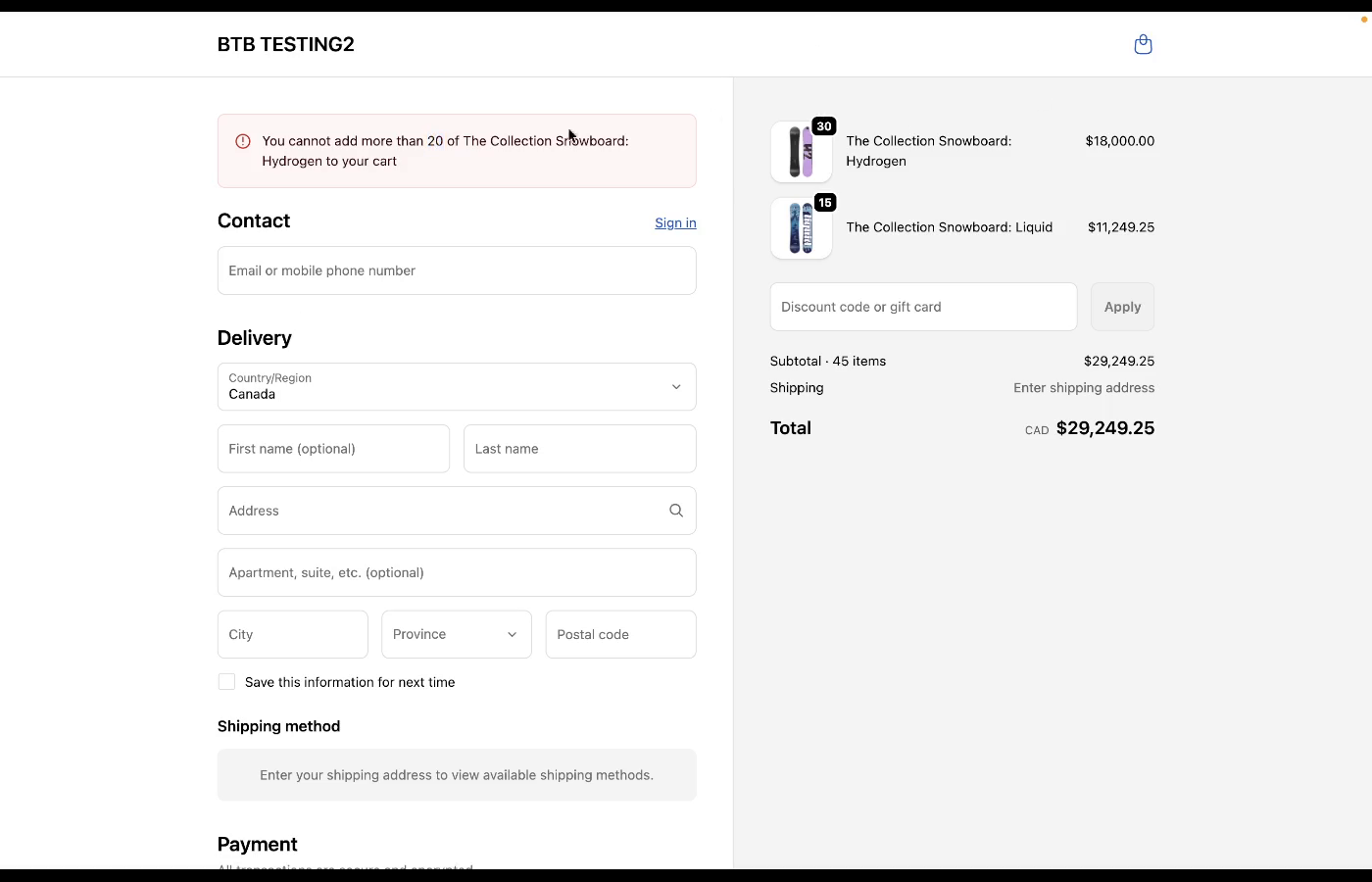
Configure the error message — toggle “Use custom message” to write your own, or keep the auto-generated message. The default message clearly tells customers the limit: “You cannot add more than 20 of The Collection Snowboard: Hydrogen to your cart.”
- 5
Save the rule — click Save. Your maximum quantity rule is now active on both the cart page and at checkout.
Tip: You can add multiple products to the same rule, or create separate rules with different limits for different products. Use “Add Maximum Quantity Limit” to add more product-limit pairs within the same rule.
Step 3: How it looks on your store
Once the rule is active, here’s what happens when a customer tries to order more than your maximum:
- 1
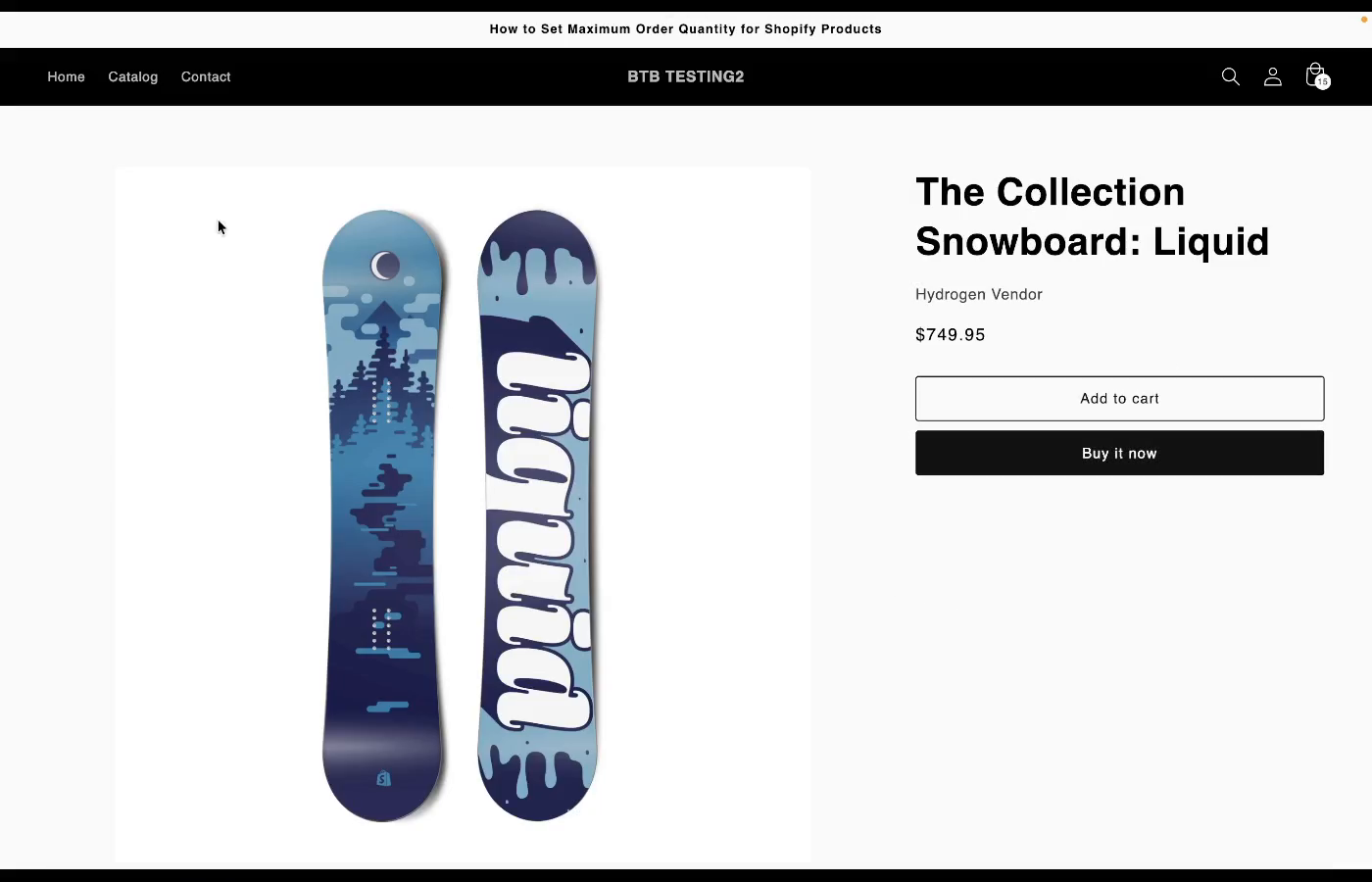
Customer browses your product — they can add items to cart normally from the product page.
- 2
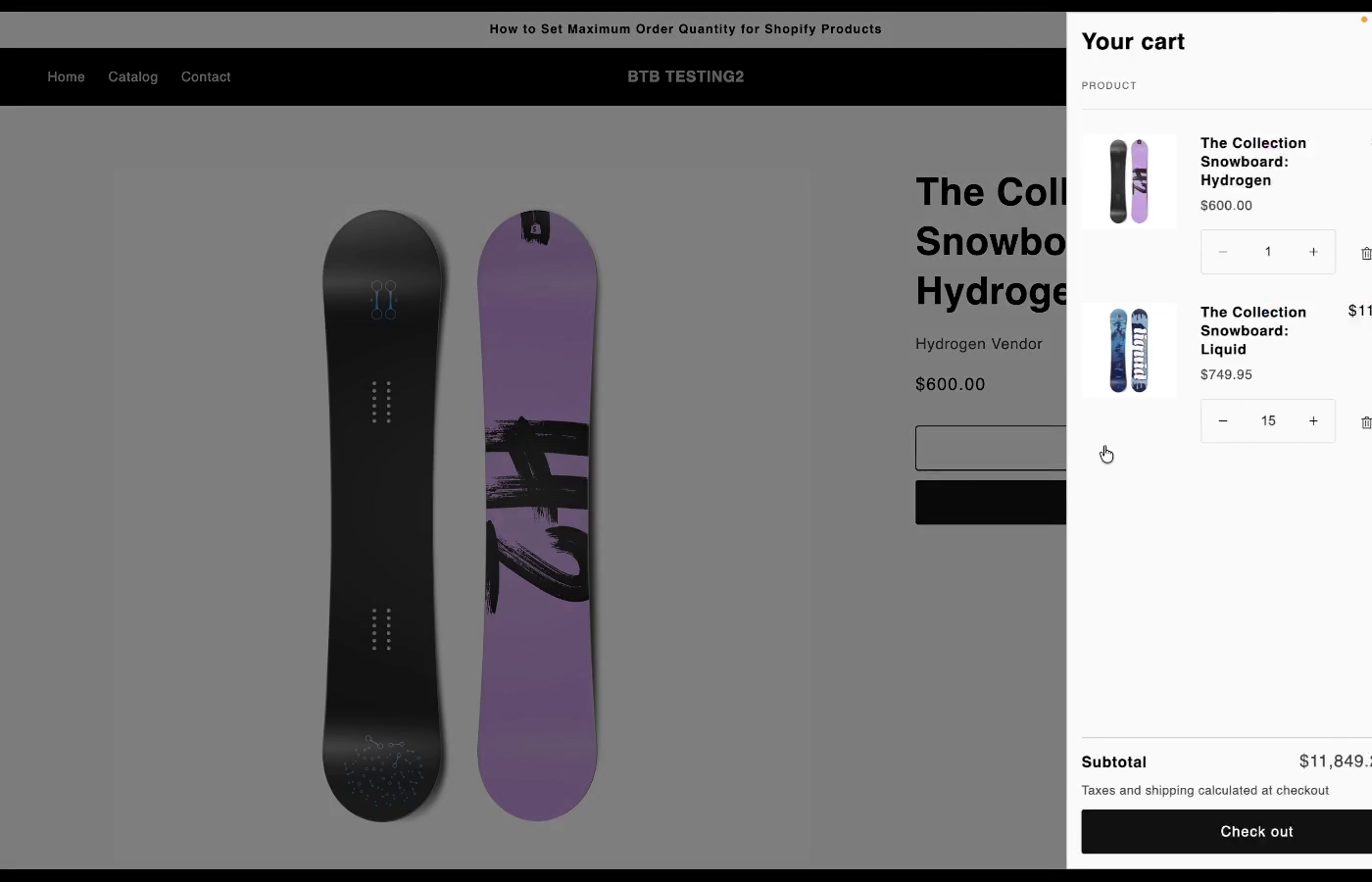
Cart shows the items — even if they add more than the maximum, the cart page displays their items. The validation happens at checkout.
- 3
Checkout blocks the order — when the customer reaches checkout with more than the allowed quantity, they see a clear error message and cannot complete the purchase.
- 4
Customer adjusts and completes — once they reduce the quantity to 20 or below, checkout proceeds normally.
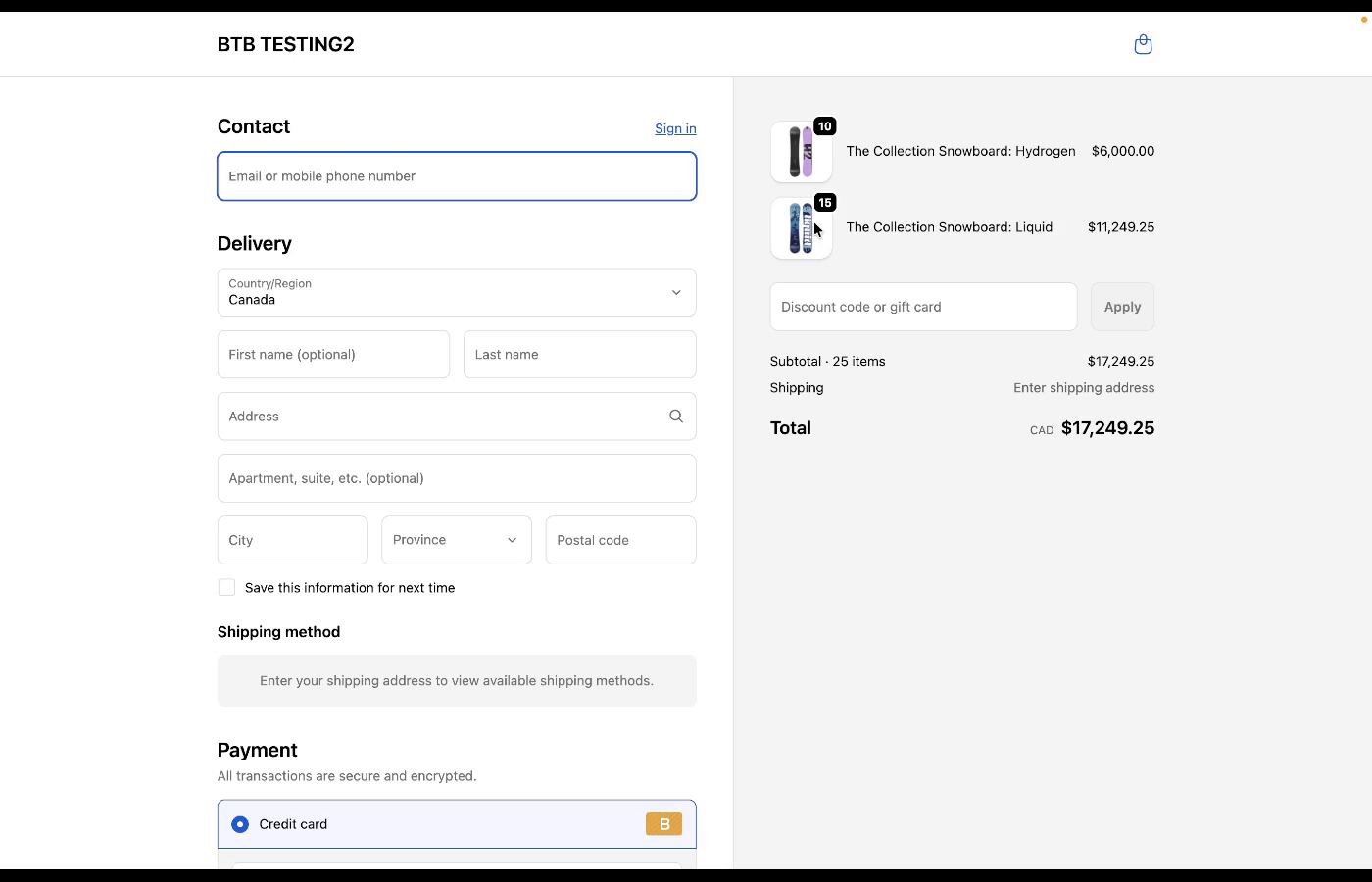
Why checkout validation matters: Cart-page-only solutions can be bypassed through direct checkout links, buy buttons, and Shop Pay. Checkout validation is the only way to truly enforce your maximum quantity limits.
Common use cases for maximum quantity
- —Limited edition products: Prevent hoarding by capping how many units one customer can buy.
- —Sample or trial products: Limit free or discounted samples to a reasonable quantity per customer.
- —Fair distribution during high demand: Ensure more customers can purchase during launches or sales events.
- —Regulated products: Comply with legal limits on quantities for certain product categories.
Summary
Setting up maximum order quantity limits on Shopify takes about 2 minutes with Nex MOQ. No code, no theme editing, and your limits are enforced at the actual checkout — not just as a suggestion on the cart page.
Related features
- Maximum Order Quantity — per-product quantity limits
- Minimum Order Quantity — per-product quantity minimums
- Checkout Validation — how rules are enforced at checkout
Further reading
- Minimum Quantity Setup Guide — set minimum order requirements instead
- Limited Edition Purchase Limits — prevent hoarding of limited products
Nex MOQ Team
We build order limit tools for Shopify merchants. Our guides are written by Shopify experts who help thousands of stores manage minimum and maximum order rules.