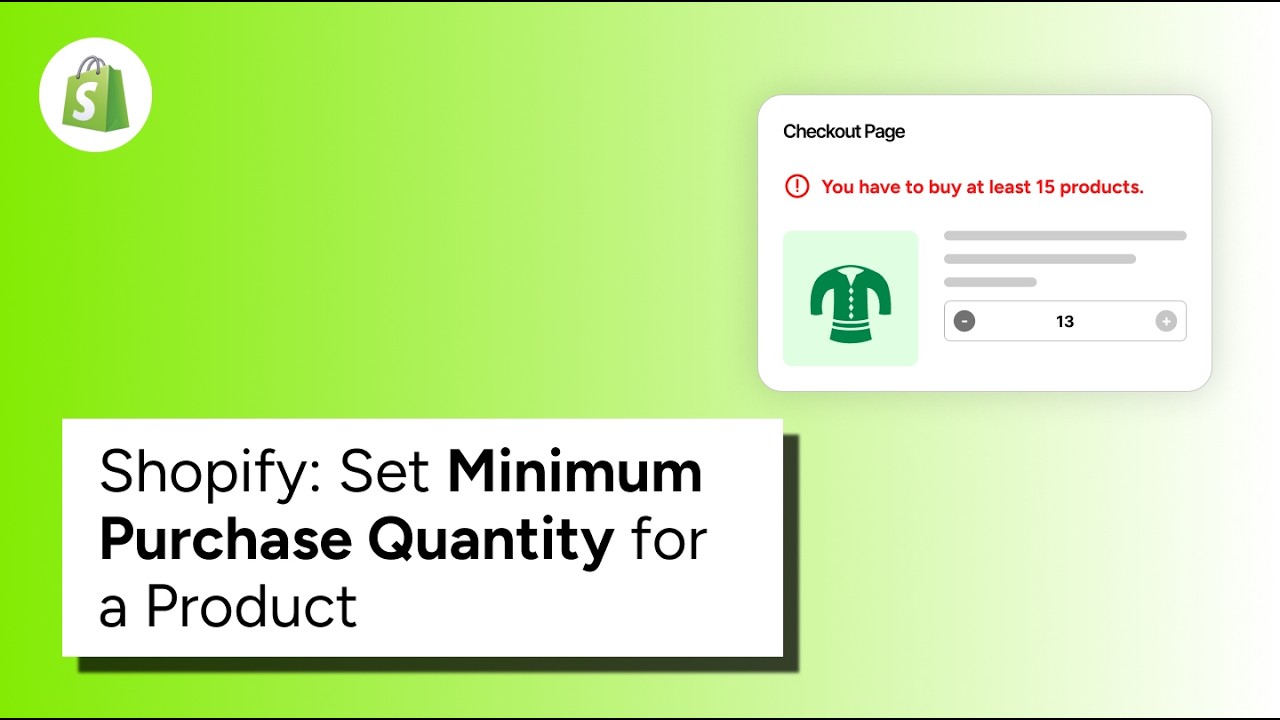
Example: if the minimum quantity is 10 for a selected product, the customer must add at least 10 of that product. 9 is blocked; 10 is allowed.
Use Minimum product quantity when a specific product must be purchased in a minimum quantity. For example, you may require a minimum for wholesale products, custom-printed items, made-to-order products, or products sold in batches.
Before you start
Before creating the rule, decide:
- Which product or products need a minimum quantity.
- What the minimum quantity should be.
- Whether you also want to restrict lower quantities on the product page. If yes, see how enforcement works.
Steps
1. Install Nex Validator
If Nex Validator is not installed yet, install it from the Shopify App Store and approve the required permissions. If it is already installed, skip to the next step.
2. Go to Simple Order Limit → Create Rule.
3. Give the rule a clear title, such as “Minimum 10 of selected products.” Then make sure Enable/Disable Limit is turned on. If the rule is disabled, it will not apply to customer orders.
4. Open the Product tab and select Product Min Quantity. Enter the minimum quantity, then select the product or products the rule should apply to.
Example: if Minimum Quantity is 10, each selected product must meet that minimum of 10 in the cart.
5. Add a clear message that tells the customer what quantity is required, then save the rule. For example: “Please add at least 10 of this product to continue.” If your rule applies to several products, use wording that still makes sense for the products selected in the rule.
Verify it worked
Test the rule in these three situations:
- Add a selected product below the minimum. Checkout should be blocked.
- Add exactly the minimum quantity. Checkout should continue.
- Do not add the selected product to the cart. The rule should not affect checkout.
Test the exact number too. A minimum of 10 should allow 10, not require 11.
Common setups
| Goal | Example minimum |
|---|---|
| Custom-printed products | The smallest quantity you can produce |
| Wholesale products | Your minimum case quantity |
| Fresh or perishable products | Your minimum batch quantity |
| Made-to-order products | The smallest quantity worth producing |
If customers must order in fixed multiples such as 5, 10, 15, and 20, use Product bulk limit instead.